Get Started
Step 1
Shipster Pro works on the foundation of ShipStation and utilizes the ShipStation shipping API. The ‘Standard’ plan (starting at $29.99/month) gets you access to the API and is the starting point for using Shipster Pro.
Price: $29.99/month
—
Generating API Keys
In order to connect Shipster Pro to your ShipStation you will need to generate an API key. In ShipStation go to Settings > Account > API Settings and select (Generate API Key)
Provide your Base64 API key and your camera and printer names from your shipping station to Shipster Pro so we can finalize system setup.
Step 2
All emails from Shipster Pro are sent from SendGrid (a Twillio service). We will configure the account for you and send you the required confirmation link and DNS (txt) record.
If you don’t have direct access to your website DNS settings, simply forward this information on to your web hosting provider.
—
Details: the txt record (DNS) verifies that Shipster Pro is authorized to send email on behalf of your company. This record gets placed in your website DNS records and helps keep your emails from getting flagged as ‘spam’ or blocked by email providers.
Step 3
We will create an account for you on the Shipster Pro platform. Once you verify your email address you will get a download link and you’ll be ready to set up your shipping station.
System Setup
Packing Slips
In order to scan an order in to Shipster Pro you will need a barcode on your packing slip. You can either use the Shipstation [Barcode] variable or a simply use the ‘Order number’ from Shipstation or from your ecommerce platform.
In Shipstation Templates, either of these codes will work:
<barcode>[Barcode]</barcode> <barcode>[Order #]</barcode>Shipstation API Connection
To connect Shipster Pro to your Shipstation account we will need a Base64 version of your API key.
Step 1: In ShipStation go to Settings > Account > API Settings and select (Generate API Key/Secret)
Step 2: Convert to a Base64 key (you can use this free tool)
Step 3: Provide the Shipster Pro team with your key to finalize setup.
Setting up your hardware
The desktop application for Shipster Pro will need to run on a Windows computer running Windows 10 or 11. The computer will need to have the scale, camera, printer and button connect via USB. Make sure your computer has enough USB ports or has a port extender (to add additional ports).
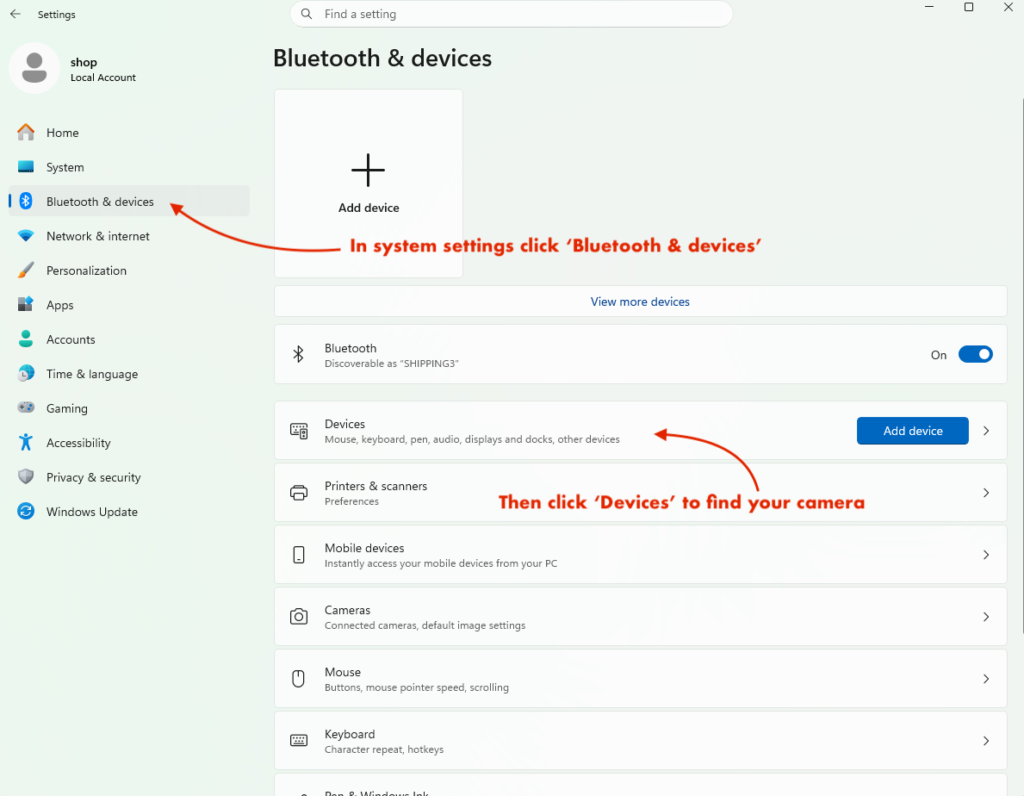
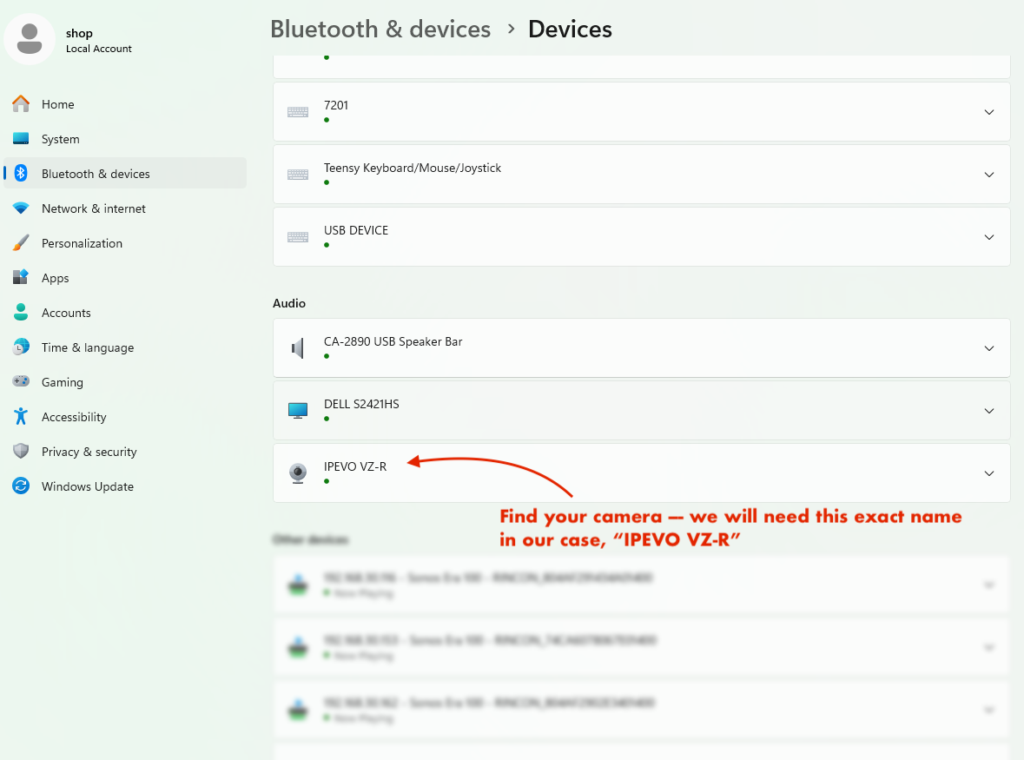
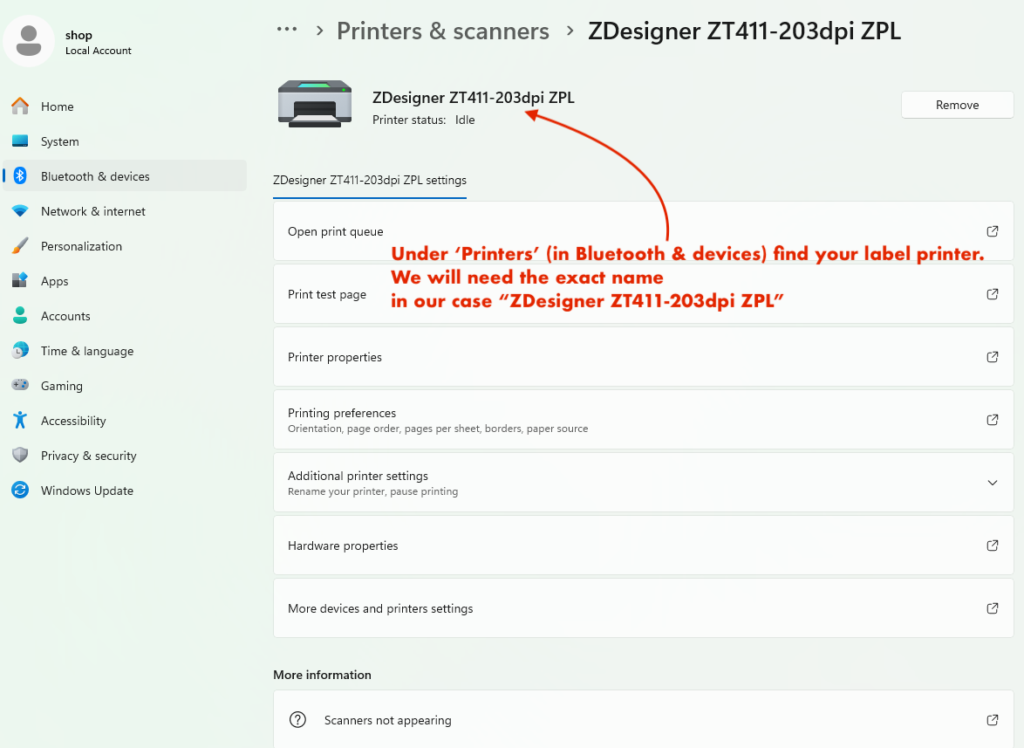
Once your devices are all connected to your computer make note of the Printer and Camera name (we will need this to configure each shipping station using Shipster Pro)
Shipster Pro access
Once you send us the names of your camera and printer and provide us with the Base64 API key, we will finalize your software setup and send you a downloadable file. The Shipster Pro desktop application can be installed on as many shipping stations as you need, but each station will need to be configured separately (with the names of that station’s printer and camera — these names can be the same across multiple stations, but will still need to be individually configured on the back-end)
Login
Once your account has been created you can login to the online picker and order tracking tool at:
Shipster Pro features
Shipping history (including images of past shipments)
‘Picker’ interface (can be used on any devices with a connected barcode scanner)
Additional ‘Store’ and ‘Station’ settings
Ship-from setup
Shipster Pro is designed to allow users to configure multiple ‘stores’ from within Shipstation and simplify the shipping process. If you are using multiple stores (and want the ‘Ship from’ information to appear different, depending on the store) you will need to configure Shipster Pro to properly select the correct ‘location’ from your Shipstation account.
Quick notes:
Each store can have only one ‘ship from location’ set.
You can use the same ‘ship from location’ for multiple stores.
All ‘From’ email addresses will need to be configured through Shipster Pro to ensure proper domain permissions.